This computer
Folder import
Folder import is a small program you run on a computer that can see the folder. It signs in to production VisionDoc at https://app.visiondoc.ai, reads the folder, and uploads new documents. It does not change or delete the files in the source folder.
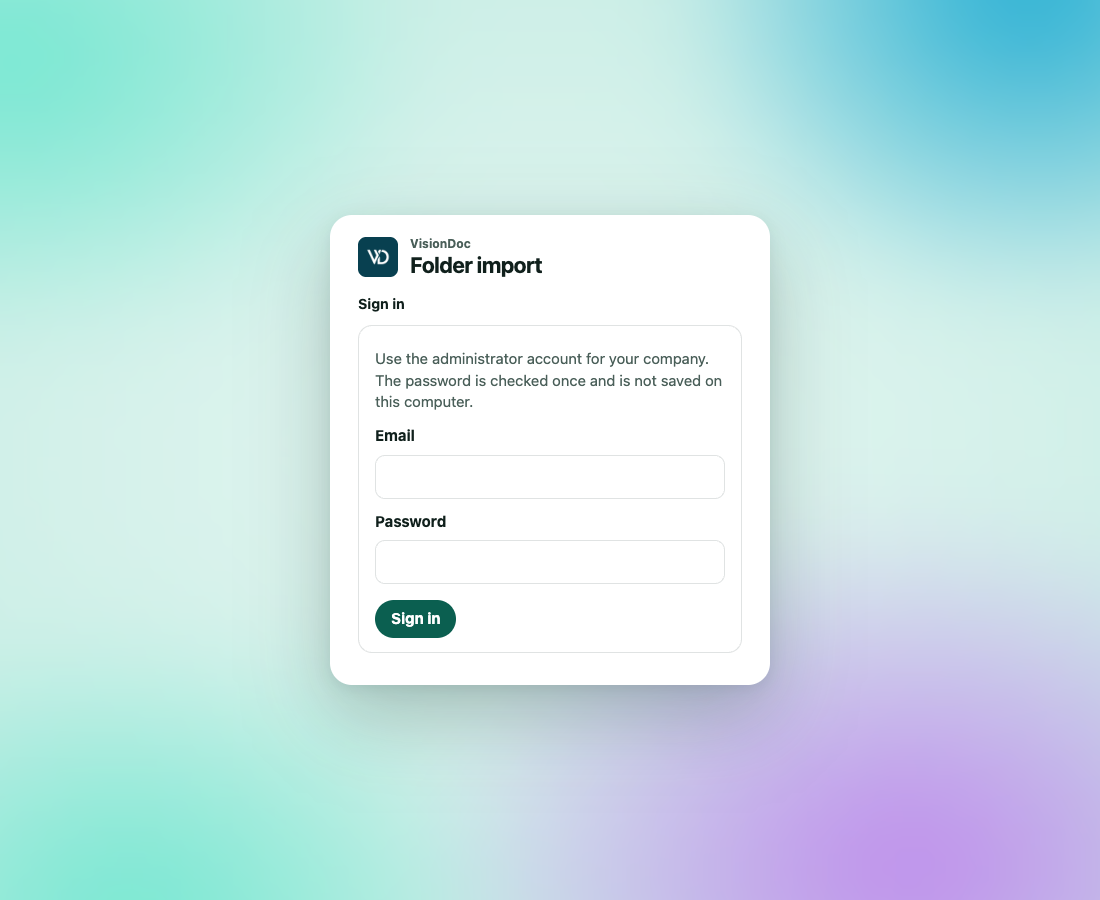
The program is the public image ghcr.io/kaff-international-limited/visiondoc-smb. It talks only to production. No GitHub login is required to pull it.
What you need
- Docker. Compose is not required.
- A company administrator account on production VisionDoc.
- Your company must already be allowed to pair an importer. If sign-in says the company is not enabled, ask the person who runs VisionDoc for your company.
- A read-only account on the folder is enough.
Start it
On the computer that should do the importing:
docker pull ghcr.io/kaff-international-limited/visiondoc-smb:latest

docker run -d --name visiondoc-smb \
  --restart unless-stopped \
  -p 127.0.0.1:8787:8080 \
  -v visiondoc-smb:/data \
  --read-only \
  --tmpfs /tmp:size=64m,mode=1777 \
  --cap-drop ALL \
  --security-opt no-new-privileges:true \
  --memory 512m \
  ghcr.io/kaff-international-limited/visiondoc-smb:latest
Then open http://localhost:8787 on that same computer. If that port is taken, change the first number, for example -p 127.0.0.1:8788:8080.
The setup page is light, and it stays light. It is separate from the theme you pick in the VisionDoc console. The labels on this page stay in English.
Connect the company
- Enter the administrator email and password.
- Click Sign in.
The card says Use the administrator account for your company. The password is checked once and is not saved on this computer.
The password is checked once and is not saved on the computer. VisionDoc returns a token that the importer keeps. Browser sign-in on this page lasts up to 30 days.
Example: the company administrator signs in on the office computer that can see \\files\scan\inbox. The password is not written into a file on that computer. The next time someone opens http://localhost:8787 on it, the company is already connected, until the 30 days are up or someone signs out.
Choose the folder
- Pick a protocol: SMB, SFTP, FTPS, or WebDAV.
- Enter the folder.
- SMB uses a UNC path, such as
\\server\share\folder. - SFTP uses
sftp://files.example/inbox. - FTPS uses
ftps://files.example/inbox. - WebDAV uses an
https://address.
- SMB uses a UNC path, such as
- Enter the username and password for that folder. For SMB you can use
DOMAIN\username. - Click Test connection and save.
- Click Start import.
Plain FTP and plain HTTP are refused. The page tells you the address shape for the protocol you picked.
Files larger than 64 MB stay in the folder and are not uploaded. Every subfolder is included.
Example: the scanner drops PDFs into \\files\scan\inbox, and inbox\2026 is a subfolder. Choose SMB, enter \\files\scan\inbox, use a read-only account, then Test connection and save and Start import. A 2 MB invoice is uploaded. A 90 MB scan stays in the folder. A file already in inbox\2026 is included, because every subfolder is.
What the status means
The three steps at the top are Company, Folder, and Import.
| Mark | Meaning |
|---|---|
| Importing | A scan is running |
| Paused | The scan is stopped |
| Ready | The folder is saved and has not been scanned yet |
| Imported | That file is now a VisionDoc document |
| Unchanged | The same content was already imported |
| Skipped | A duplicate of content already imported |
| Waiting | The file was still changing, so this scan left it |
| Failed | That file was not uploaded. The reason is on the row |
Identical content is uploaded once, even if the file is renamed. A changed file becomes a new document. Removing a file from the folder does not delete the document in VisionDoc.
Refresh the page to update the list. Scan again runs another pass. Pause stops the scan.
Example: invoice-104.pdf imports, and someone renames it to invoice-104-signed.pdf without changing the pages. The next scan marks it Unchanged, not a second document. If they add a signature page, the next scan marks the new content as a new document. Deleting the PDF from the share leaves the VisionDoc document where it is.
Sign out and restart
Sign out only hides this setup screen. Import keeps running. The note under the button says Hides this screen only. Import keeps running.
docker restart visiondoc-smb, or a restart of the computer, keeps the saved folder, the token, and the list of what was already imported. Docker has to start on that computer. Do not remove the visiondoc-smb volume unless you mean to set the importer up again from the beginning.
The setup page listens on this computer only. Do not publish port 8787 on the internet. For remote use, put a secured HTTPS proxy in front of it.