Work
Workflow
Workflow is the row with a chevron, under the WORKFLOW heading. Click the row. The chevron turns up and the menu opens. The row itself is not a page.
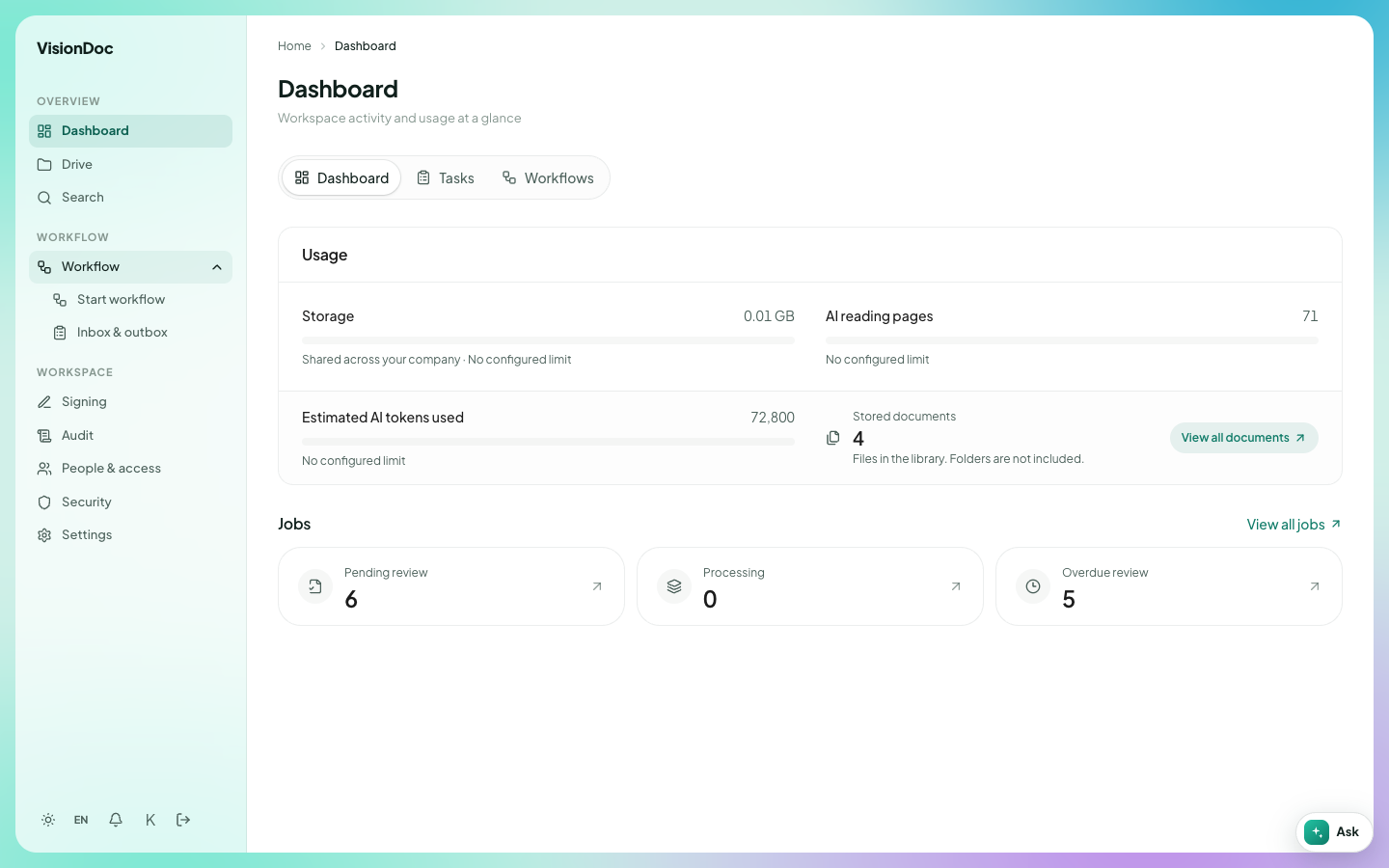
On the company in the pictures, the open menu has two items.
| Item | What you do there |
|---|---|
| Start workflow | Pick a workflow and begin it |
| Inbox & outbox | See work waiting for you, work you sent, and work you already decided |
Two more pages sit in the same group when the company uses them. They are not in this menu picture. Each has its own screenshot below.
| Page | What you do there |
|---|---|
| Application folder | See each application and the decision on it |
| Purchase Requisition | A non-trade request, from the draft through approval and the delivery record |
Start workflow
Start workflow opens Workflows. The line under the title says Choose a workflow to get started.
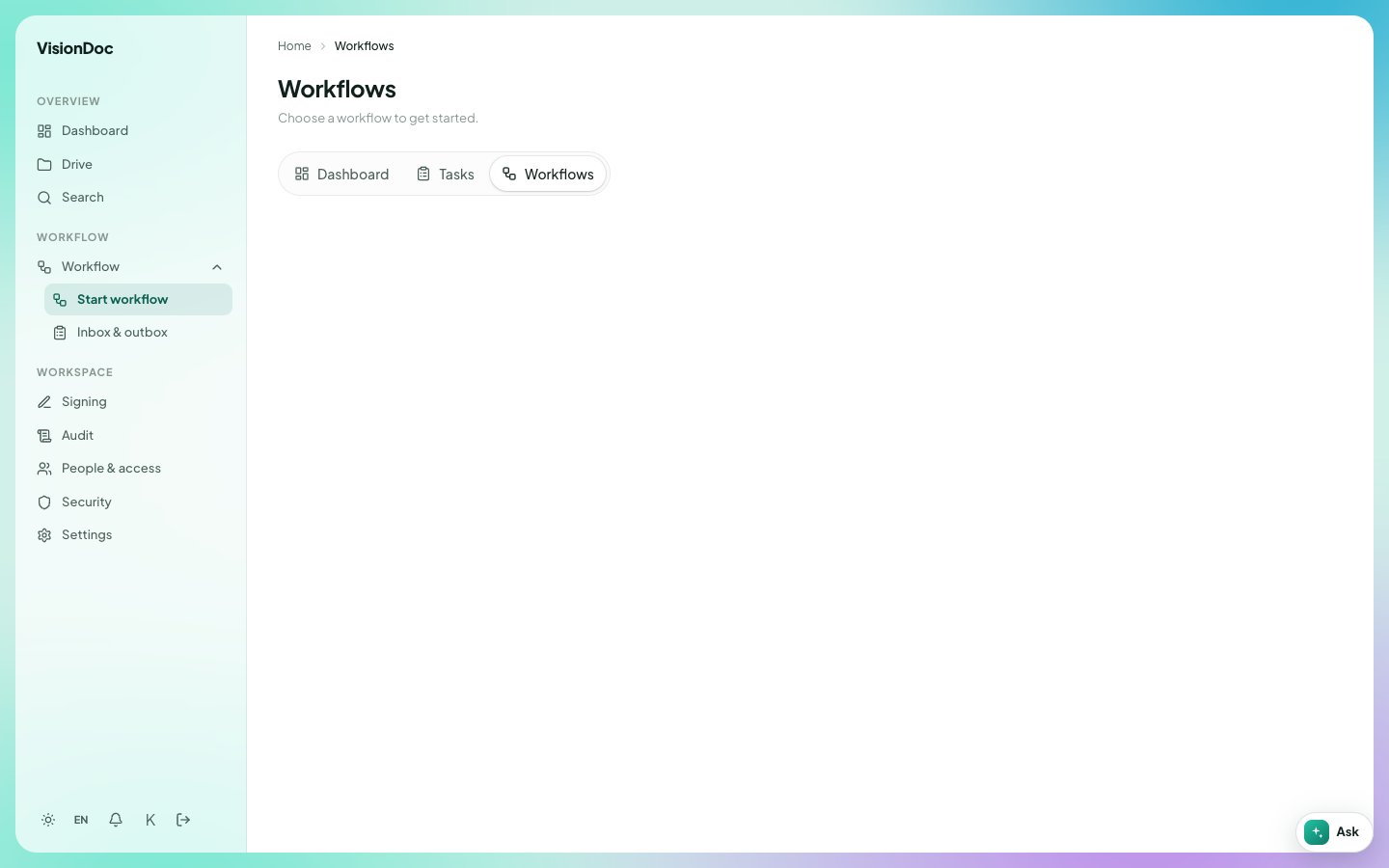
The same three tabs sit here as on the dashboard: Dashboard, Tasks, and Workflows. Workflows is the one selected.
Example: a salesperson has a quotation PDF in Quotation and needs a manager to approve it. They open Start workflow, pick the quotation workflow the company has set up, and attach that PDF. The run then shows up in Inbox & outbox for the manager. This company has no workflow in the list yet, so there is nothing to pick.
Inbox & outbox
Inbox & outbox is the list of runs already moving. The title is Workflow inbox & outbox. The line under it says Incoming approvals, submitted work, and decisions in one place.
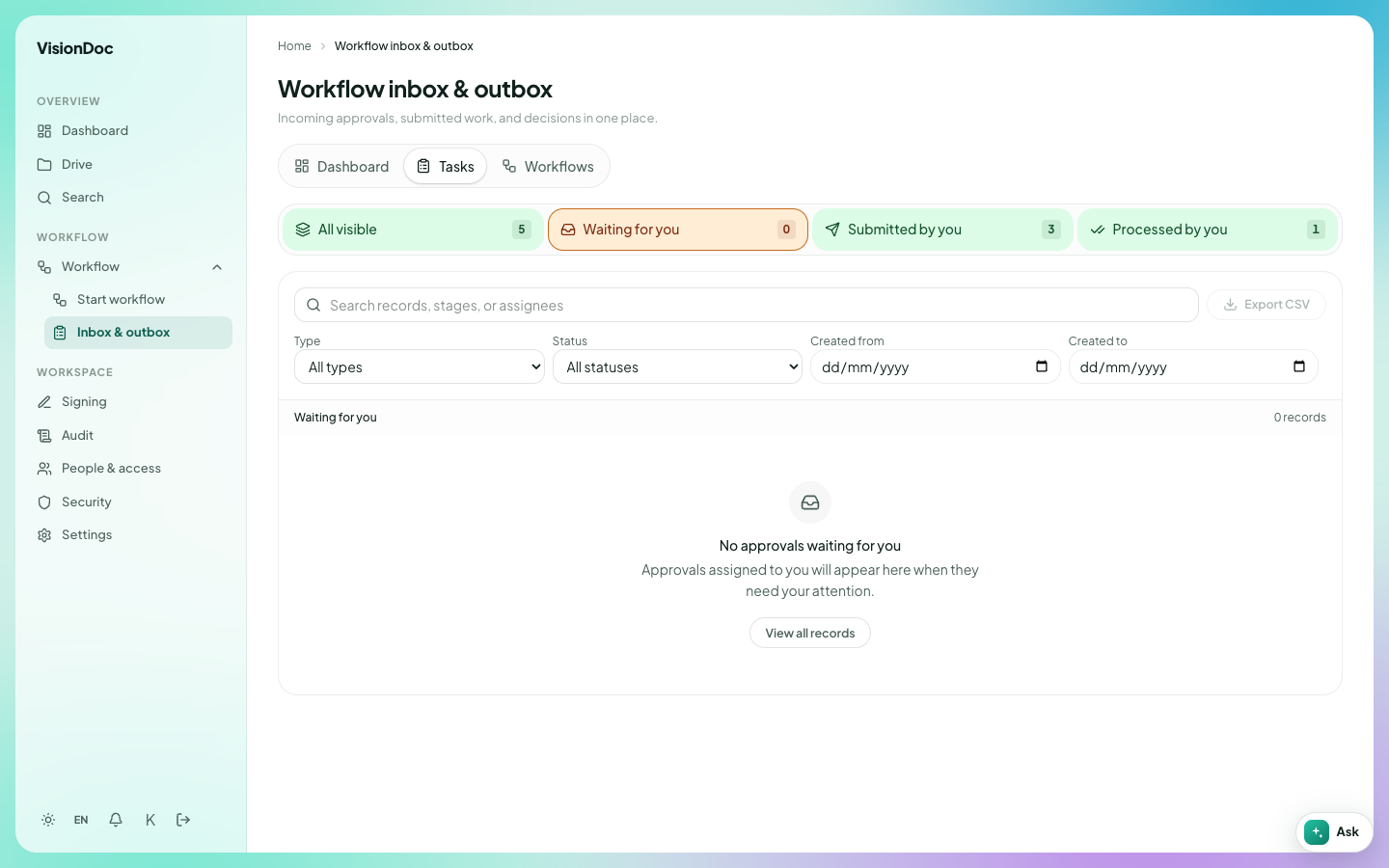
Four counts sit across the top. The picture shows:
| Count | In the picture |
|---|---|
| All visible | 5 |
| Waiting for you | 0 |
| Submitted by you | 3 |
| Processed by you | 1 |
Waiting for you is selected, and the list says No approvals waiting for you. The line under that says Approvals assigned to you will appear here when they need your attention. View all records leaves that empty filter.
Tasks on the dashboard opens this same list, with the Tasks pill selected.
The search box reads Search records, stages, or assignees. Type is All types. Status is All statuses. Created from and Created to take a date. Export CSV downloads the list you are looking at.
Example: the manager opens Inbox & outbox, leaves Waiting for you selected, and approves the quotation. After that, Waiting for you goes back to 0 and Processed by you goes up by one. The salesperson opens the same page, selects Submitted by you, and sees the three they already sent. To see only what is still open, set Status away from All statuses.
Application folder
Application folder is the list of applications and the decision on each one. The line under the title says Your submitted applications and completed decisions, across workflows.
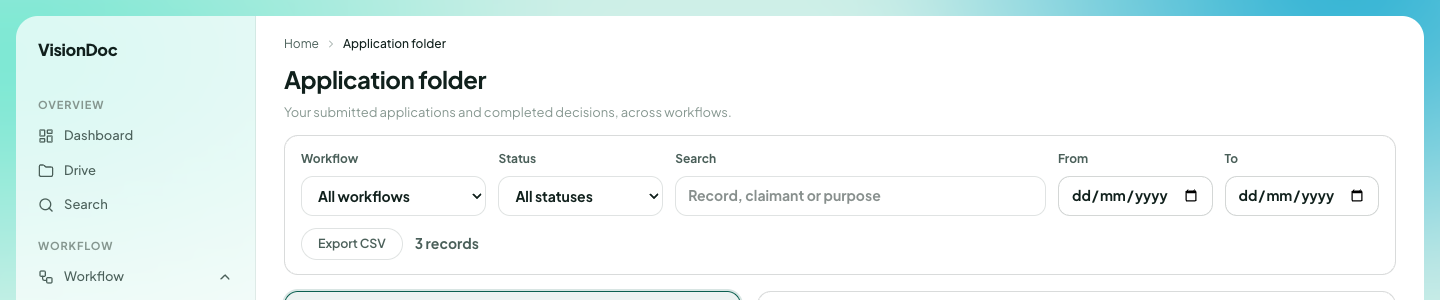
| Control | What it does |
|---|---|
| Workflow | All workflows, or one workflow |
| Status | All statuses, or one status |
| Search | Record, claimant or purpose |
| From / To | A date range |
| Export CSV | Downloads the rows that match |
The picture says 3 records. The rows themselves are not in the book.
Example: a quotation was submitted last week and you only want the ones still open. Set Status off All statuses, type a word from the purpose, and set From and To to that week. Export CSV saves those rows. 3 records in the picture is this company's count, not a limit.
Purchase Requisition
Purchase Requisition is the non-trade list. The line under the title says Non-trade with PR · VisionDoc routing, then Your requisitions, ready for the next step.
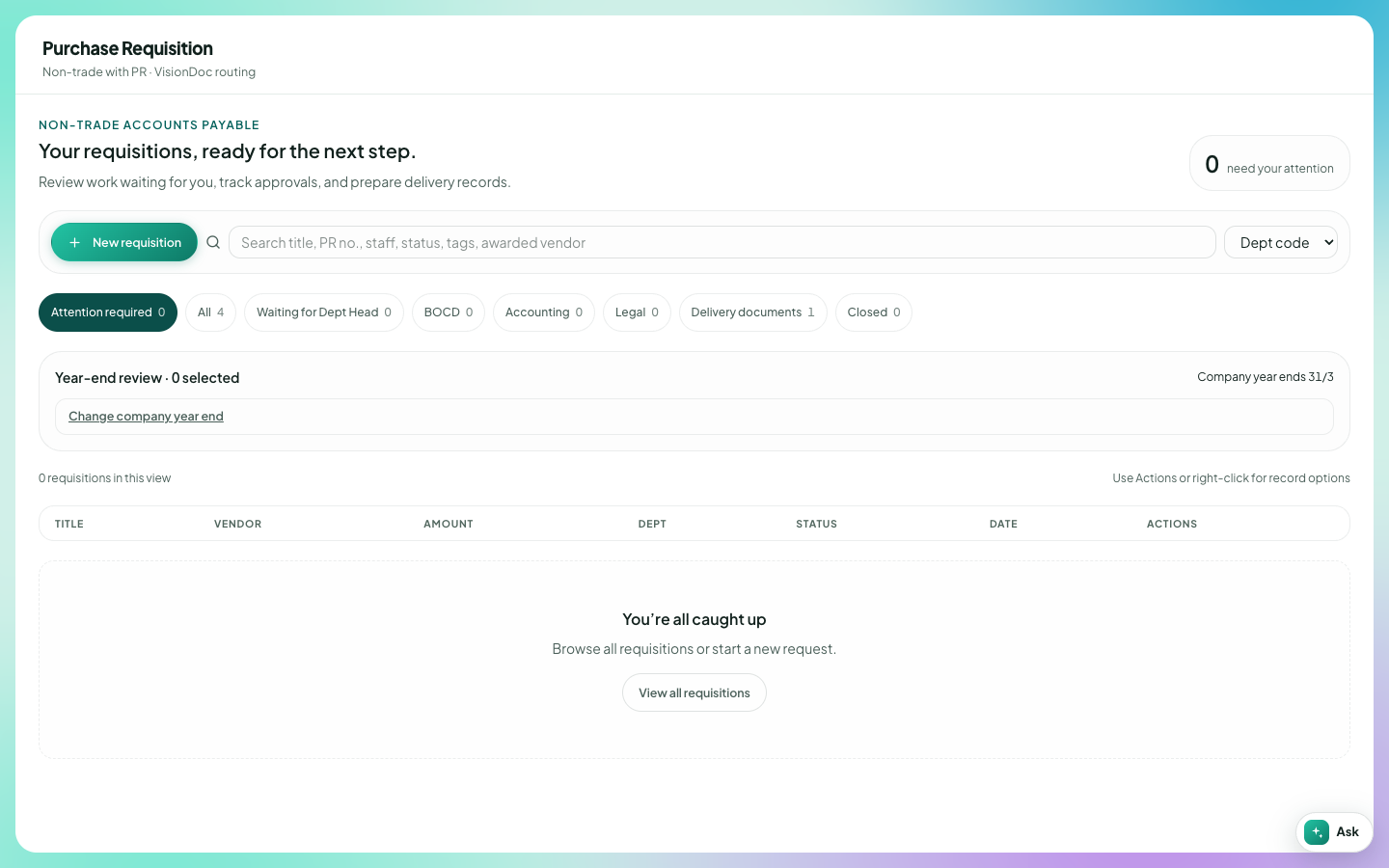
New requisition starts one. The search box reads Search title, PR no., staff, status, tags, awarded vendor. Dept code filters by department.
The chips in the picture:
| Chip | Count |
|---|---|
| Attention required | 0 |
| All | 4 |
| Waiting for Dept Head | 0 |
| BOCD | 0 |
| Accounting | 0 |
| Legal | 0 |
| Delivery documents | 1 |
| Closed | 0 |
Attention required is selected, so the page says You're all caught up and 0 requisitions in this view. View all requisitions leaves that filter. Company year ends 31/3. The columns are Title, Vendor, Amount, Dept, Status, Date, and Actions.
Example: someone needs office supplies. They click New requisition, fill the request, and send it. It waits under Waiting for Dept Head, then Accounting. When the goods arrive, it sits on Delivery documents until the delivery record is in. In the picture that last chip already has 1, and Attention required has 0, so nothing on this account needs a decision right now. Switch to Delivery documents to open the one that is waiting for the delivery record. All shows the 4.